Quantity takeoff for estimators
Measure PDF drawings right on the first click.
QS Precision reads the scale, snaps to the walls, names the rooms and counts every symbol. You check the numbers and export the bill of quantities.
Early access — sign-in is open to invited accounts.
Less clicking, fewer mistakes
The slow, error-prone parts of a takeoff — scale, corners, deductions, counting — are done by the app. The judgement stays with you.
The scale, found for you
Reads “SCALE 1:50” from the title block and checks it against a dimension on the sheet. If the sheet was printed at another size, it says so.
Snaps to the drawing
Clicks land on wall corners, line ends and intersections — with a loupe, ortho lock and a live length beside the cursor.
One outline, every quantity
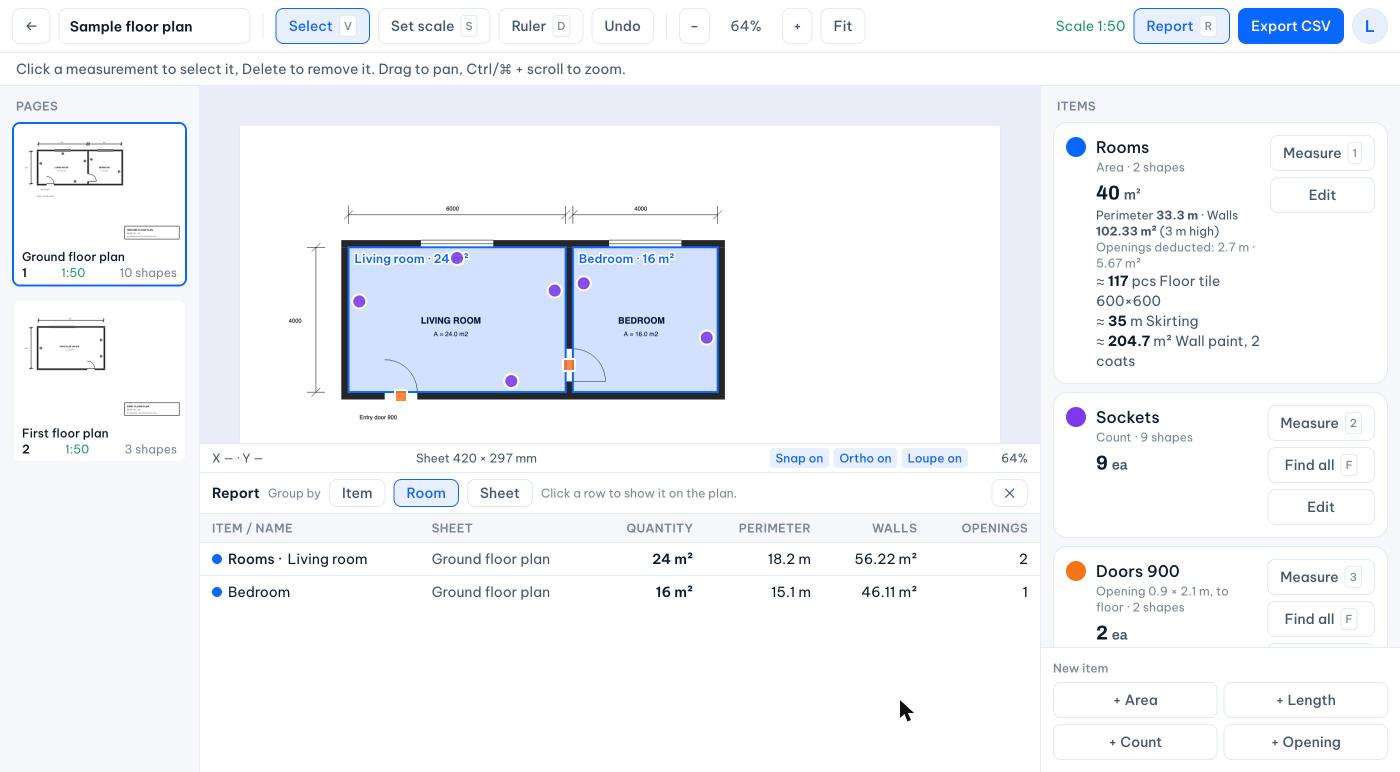
Outline a room once: floor area, perimeter and wall area from the room height. Cut out columns and voids. Rooms name themselves from the drawing.
Doors and windows deducted
Place each opening in its wall; it comes off the skirting and walls of both rooms it sits between.
Find every symbol
Box one socket, light or sprinkler. Every copy on every sheet is circled for you to check, then counted in one click.
Works with your AI assistant
Connect Claude or ChatGPT to your projects. Ask it to summarise the bill of quantities, set materials for every room type or name the rooms — the changes show up in the app.
Figures measured on the sample drawing in the app.
How it works
- 1
Open the drawings
Drop in a PDF set from CAD. Sheets are named from their title blocks; the scale is suggested on each.
- 2
Measure and count
Outline rooms, trace runs, box a symbol to count them all. Totals and materials update with every click.
- 3
Export the quantities
A room schedule, a summary and a materials list — one CSV that opens straight in Excel.
Your drawings, on your account only
PDFs are opened and measured in your browser. The takeoff and, unless you turn it off, the drawing itself are kept on your account, so a project opens on any computer you sign in on.
- Sign-in: your Google name and email, to know who is using the app.
- Synced to your account: project names, items, measured shapes, materials and scales, and the PDF (switch “Keep drawings on my account” off to keep it on the computer). Deleted with the project.
- AI assistants: only the ones you connect yourself, and only to your own projects. They see the takeoff and, for each sheet you open, an image and its text — so they can read the drawing with you. Deleted with the project.
Try it on your drawings
A sample drawing is built in, so you can see it work in a minute.